

Many people learn shortcuts gradually. Copy, paste, and save become second nature. Problems appear once the number of shortcuts grows. Lists become messy, combinations are forgotten, and different apps use similar keys for different actions.
A Microsoft productivity study found that workers switch between applications more than 1,100 times per day, and each switch can cost several seconds of attention recovery. Small interruptions add up quickly. That is one reason keyboard shortcuts remain one of the most powerful productivity tools available.
Organizing keyboard shortcuts properly solves this problem. Instead of remembering dozens of random commands, you create a system that works with how your brain processes tasks.
The following strategies show how to structure shortcuts logically so daily work becomes faster and easier to manage.
Why organized shortcuts improve productivity

Keyboard shortcuts speed up work, but the real benefit appears when they are organized around routines rather than individual apps.
People usually perform tasks in sequences. Writing text, editing documents, browsing files, switching tabs, or managing emails. If shortcuts follow the same mental flow as these tasks, they become easier to remember.
Several patterns tend to work well.
- Commands that belong to the same category should share similar key structures. For example, navigation shortcuts grouped around arrow keys.
- Editing shortcuts often follow letter associations, such as C for copy or V for paste.
- Task switching shortcuts should remain consistent across applications whenever possible.
A well-organized shortcut system also reduces hesitation. Instead of pausing to remember the correct key combination, your fingers move automatically. Over time, the process becomes muscle memory, which is exactly what makes shortcuts powerful.
Start by grouping shortcuts by task type
Many people store shortcuts in random notes or memorize them app by app. A better method is to categorize them based on the type of action they perform.
Think about how your daily tasks actually happen. Most workflows revolve around a small set of actions.
Typical shortcut categories include the following.
- Navigation shortcuts used for moving between tabs, windows, or folders
- Editing shortcuts used while writing or modifying content
- System shortcuts used to control operating system features
- Application shortcuts unique to specific tools or programs
When shortcuts are grouped this way, they become easier to locate mentally. Instead of remembering twenty separate commands, you only need to remember which category the action belongs to.
This structure also prevents overload. Once a category becomes too large, you know it is time to simplify or remove unused commands.
Input methods can also affect shortcut workflows

Typing efficiency plays a major role in how keyboard shortcuts are used. Many users working with multilingual input systems rely on specialized tools that introduce their own shortcut patterns.
An example appears with 搜狗输入法 (Sogou input method), a widely used Chinese input system that allows fast switching between characters, predictive typing, and language modes. These features rely on custom shortcut combinations that integrate with operating system commands and everyday typing workflows.
When users adopt tools like this, they often reorganize their keyboard shortcuts so input switching, text editing, and navigation remain consistent within the same workflow.
Build a visual reference system
Even experienced users forget shortcuts. That is normal. The solution is not memorization but a quick visual reference system.
A simple table can help organize frequently used commands.
| Task Type | Example Shortcut | Purpose |
|---|---|---|
| Navigation | Ctrl + Tab | Switch browser tabs |
| Editing | Ctrl + Z | Undo action |
| Window Control | Alt + Tab | Switch applications |
| File Management | Ctrl + S | Save document |
A small printed sheet near the workspace or a digital reference note works well. Over time, shortcuts used regularly will move into muscle memory and the reference sheet becomes unnecessary.
The goal is not to memorize everything immediately. The goal is to create a reliable map of commands that supports learning gradually.
Create shortcut layers for complex workflows
Advanced users often rely on layered shortcuts. This means creating groups of shortcuts that activate related actions within specific contexts.
For example, video editors, developers, and writers frequently organize shortcuts into workflow layers.
- Editing layer used while writing or modifying content
• Navigation layer used while browsing files or project folders
• Review layer used during proofreading or content checking
Instead of remembering dozens of unrelated commands, the brain associates each shortcut with a stage of work.
Did you know?
Cognitive psychology research shows that context based memory significantly improves recall speed, especially when tasks are grouped by activity rather than isolated information.
When shortcut systems mirror real work stages, they become easier to learn and far more reliable under pressure.
Reduce conflicts between different applications

One of the biggest obstacles to efficient shortcuts is conflicting commands across apps.
A shortcut that performs one function in a browser may perform something entirely different in editing software. This forces the brain to constantly adjust, which slows down work.
The easiest solution is customization.
Many modern applications allow users to remap shortcuts. When possible, try to keep the same commands consistent across tools. For example:
- Use the same key combination for navigation across files
• Assign identical editing shortcuts across writing tools
• Maintain the same window management shortcuts everywhere
Consistency reduces cognitive load. Once a shortcut becomes familiar, it works the same way regardless of the program being used.
Maintain a small shortcut library
Another common mistake is collecting too many shortcuts. Productivity systems often fail because they become overly complicated.
A better strategy focuses on maintaining a small library of essential commands.
Most daily workflows rely on a limited set of actions.
- Copy and paste operations
- Window switching
- File saving and navigation
- Tab management
- Undo and redo functions
Instead of memorizing fifty shortcuts, focus on mastering the fifteen or twenty that appear most frequently in your work.
Keeping the shortcut list small ensures those commands become instinctive rather than forgotten.
Review and refine your shortcut system regularly
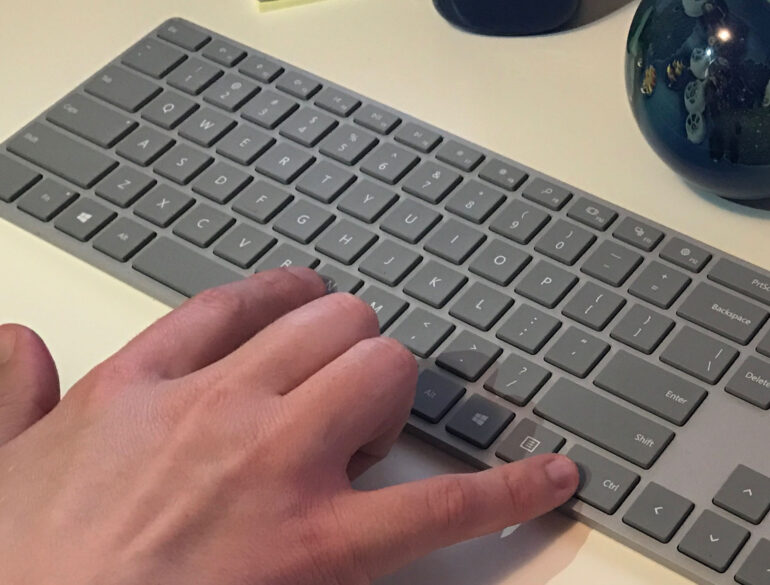
Keyboard shortcuts are not static tools. Workflows change, software updates introduce new commands, and habits evolve.
Reviewing your shortcut system every few months keeps it efficient.
Look for the following signs that adjustments are needed.
- Certain shortcuts are rarely used
- Some commands require awkward hand movements
- New applications introduce better default shortcuts
- Conflicts appear between programs
Small refinements can significantly improve comfort and speed. Removing unnecessary commands often makes the system easier to maintain.
Many professionals treat shortcut systems the same way they treat workspace organization. Periodic adjustments ensure tools remain aligned with real work patterns.
Final thoughts
Keyboard shortcuts can dramatically improve everyday productivity. The real advantage appears when they are organized logically rather than memorized randomly.
Over time, the most useful commands become automatic. Fingers move without hesitation, tasks flow smoothly, and the computer begins to feel like an extension of thought rather than a barrier to it.
That is the real goal of well organized shortcuts. They reduce friction between ideas and action, allowing work to happen faster and with far less mental effort.